Canopy Elements
Learn how to use Canopy elements in Blutui
Canopy elements are deprecated and replaced by Canopy Blocks, which let content editors manage whole sections instead of individual fields. Use block templates for new projects.
Canopy elements are the primary method for managing page-specific editable content within Blutui. They allow you to define editable regions inside your layouts or pages so content editors can manage text, images, buttons, and more directly from the dashboard without touching code.
Canopy elements are page-specific — meaning each element's content is tied to the page it appears on. If you need reusable, global content (like a footer or announcement banner), consider using a Collection instead.
Understand handles and attributes
Each Canopy element requires a unique handle (identifier) and optional attributes to configure its behavior.
For this example, we will create a simple hero section with the following elements:
| Element | Handle | Key Attributes |
|---|---|---|
| cms_heading | heading-hero | element, value, class |
| cms_text | text-description | value, class |
| cms_button | button-cta | text, url, opens_new_tab, class |
| cms_image | image-hero | url, alt_text, class |
The handle must be unique within each page and is used to identify the element in the Canopy editor. When you edit a page in the dashboard, these handles map to fields in the Canopy editor for that page.
Create a Canvas template with Canopy elements
Once you understand the structure, you can add Canopy elements to your templates.
- Inside your project's views directory, open your layouts folder (if it doesn't already exist, create it).
- Inside it, create or open a file named default.canvas.
Your file structure should look like this:
views/
└── layouts/
    └── default.canvas
Add the following Canvas code:
{% block body %}
<section class="bg-white text-slate-900">
  <div class="mx-auto max-w-7xl px-6 py-20">
    {{ cms_heading('heading-hero', {
      element: 'h1',
      value: 'Welcome to Our Site',
      class: 'text-3xl md:text-5xl font-semibold'
    }) }}

    {{ cms_text('text-description', {
      value: 'Lorem ipsum dolor sit amet, consectetur adipiscing elit.',
      class: 'text-lg text-slate-600'
    }) }}

    {{ cms_button('button-cta', {
      text: 'Get Started',
      url: '#contact',
      opens_new_tab: false,
      class: 'inline-flex items-center bg-slate-900 text-white px-5 py-3'
    }) }}

    {{ cms_image('image-hero', {
      url: 'https://placehold.co/1200x900',
      alt_text: 'Hero Image',
      class: 'w-full h-auto object-cover'
    }) }}
  </div>
</section>
{% endblock %}
This code:
- Defines a heading element with an
h1tag and default text. - Adds a text element for the description.
- Creates a button with a URL and styling.
- Includes an image with a placeholder and alt text.
Edit your Canopy content in the dashboard
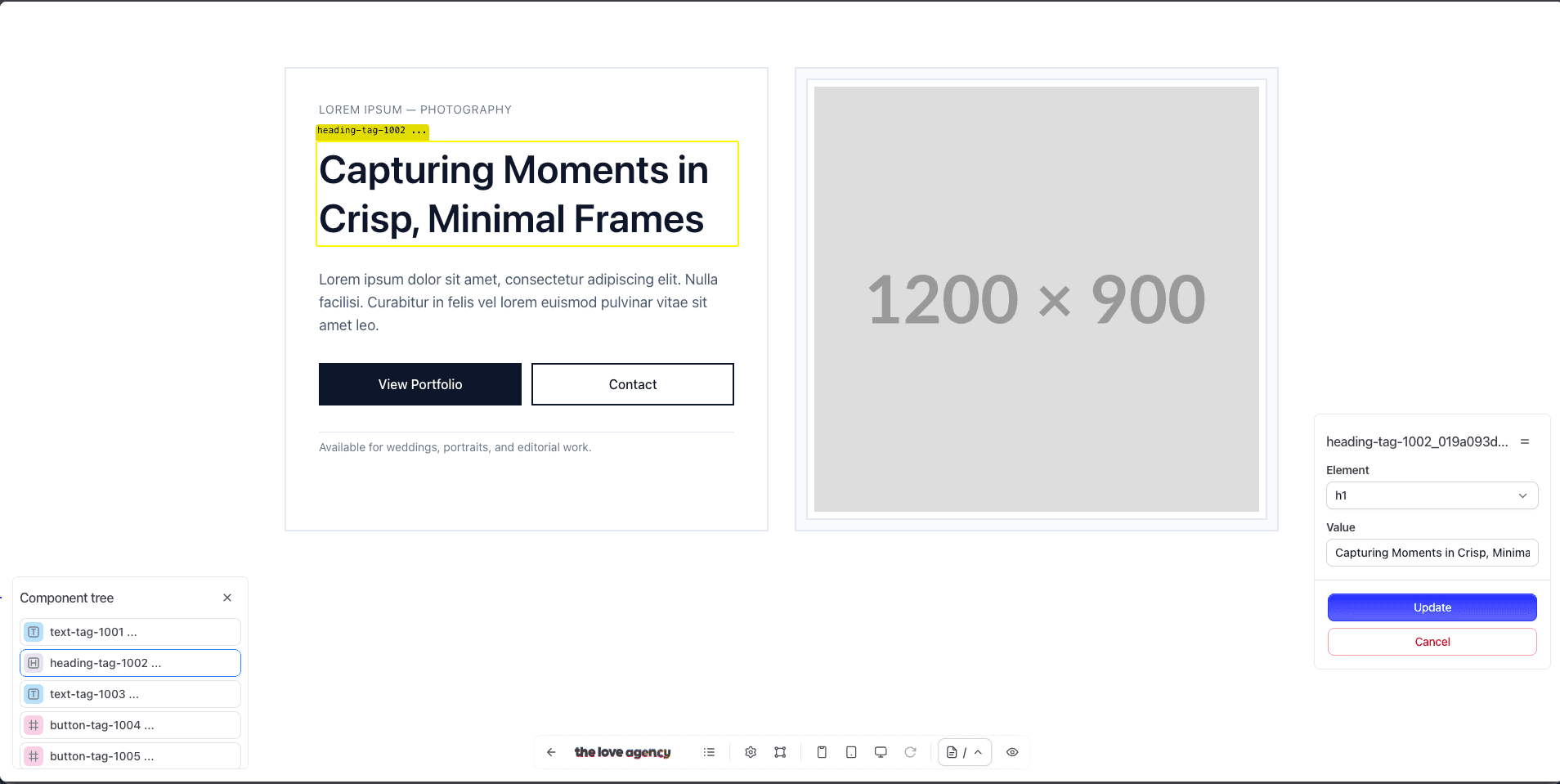
To edit the content for your Canopy elements, open the page in the dashboard using the Canopy editor button in the bottom left corner.
Available Canopy elements
Blutui supports a variety of Canopy elements for different content types:
cms_button— Styled link buttonscms_code— Code blockscms_heading— Headings (h1-h6)cms_image— Images with alt textcms_list— Ordered or unordered listscms_quote— Blockquotescms_text— Text content
For detailed information about each element type and their attributes, see the Canopy Input Types documentation.
Last updated on