Getting Started
Learn how to use cassettes in Blutui
Blutui Cassettes are like a version control system for the front-end logic of your website. They provide a simple and efficient way to manage and switch between different website designs for a single project. This is particularly useful for any scenario where you need a distinct look and feel for your website without creating an entirely new one.
How do Cassettes Work?
Every Blutui Cassette contains a public and views directory. These directories contain the front-end logic of your project. When you use the courier push command, these changes are uploaded to the Cassette configured within the courier.json file.
Blutui Courier only pushes & pulls the public and views directories. Any changes made outside these directories will not be included in the Cassette and won't be available when you run courier pull.
The Cassette to which your changes are pushed and pulled from is determined by the cassette attribute in your courier.json file. By changing this attribute, you can direct your development efforts to a different Cassette, allowing you to work on multiple versions of your site simultaneously.
{
  "$schema": "https://dev.blutui.com/schemas/v1/schema.json",
  "cassette": "[cassette-name]",
  "handle": "[project-handle]"
}
Pages Belong to a Cassette
Pages are linked to the Cassette they were created on. A page you create on one Cassette only exists on that Cassette. It won't appear on any other Cassette, including the active one.
For example, if you create an About page on a dev Cassette, it's only available when you view the dev Cassette. Visitors to your staging link ([your-site].blutui.com) see the active Cassette, so they won't see the About page until dev is made active.
Previewing a Cassette
Your staging link ([your-site].blutui.com) always shows the active Cassette. Every other Cassette has its own preview link, which you can find by clicking the ⋯ (options) button next to the Cassette in the Agency Console.
Each preview link is tied to a single Cassette. For example:
| Cassette | Preview link |
|---|---|
| default | https://[your-site]-preview-default.blutui.com |
| development | https://[your-site]-preview-development.blutui.com |
To view a Cassette, open that Cassette's own preview link. You can't switch to another Cassette from a different Cassette's preview link. If you're sharing a Cassette with a teammate or client, make sure you send them the right link.
Sharing a Preview With Your Client
Cassette preview links are password protected. Anyone without access to your project in the Agency Console will be asked for the password before they can view the site.
- Before your site is published: your staging link and every Cassette preview link are password protected.
- After your site is published: the active Cassette is your live site, so anyone can view it. Preview links for every other Cassette stay password protected, so you can share work in progress with your client without making it public.
To find the password:
- Open your project in the Agency Console.
- Go to Settings.
- Find the password under Password protection. You can change it here too.
Send your client both the preview link and the password.
The same password applies to all password protected links, so you only need to share it once. If you change the password, let anyone you've shared it with know.
Which Cassette Should I Build On?
Before your site is published: build on the active Cassette. Your pages will then show up at your staging link, and anyone you share the site with will see them however they open it. They won't need a Cassette-specific preview link.
After your site is published: duplicate the active Cassette and build on that. This lets you work on changes without affecting your live site. When you're ready, make the new Cassette active (see Typical Cassette Workflow).
Typical Cassette Workflow
You can manage your Cassettes through the Blutui Agency Console. Here's a typical workflow:
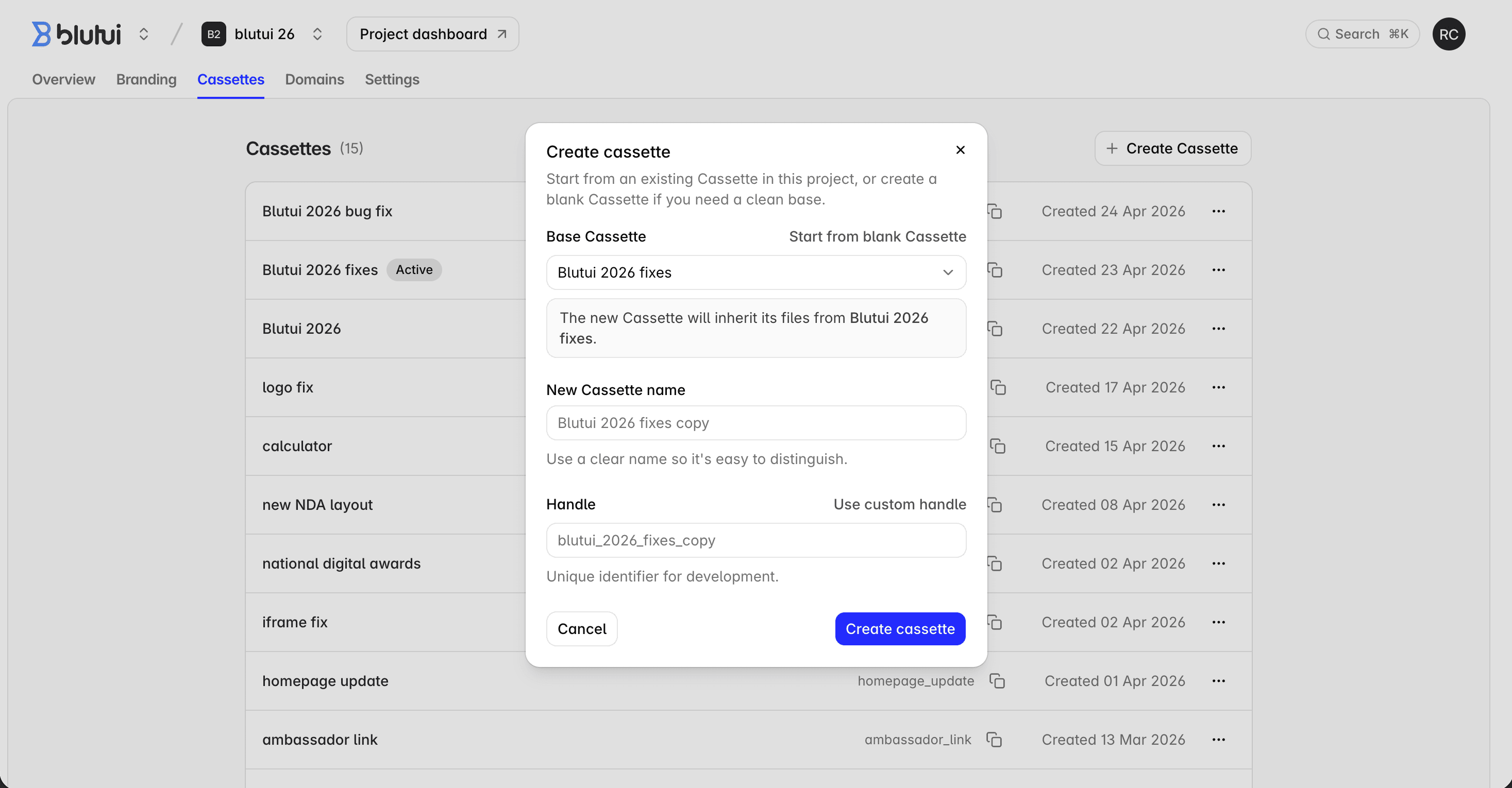
1. Duplicate a Cassette: To create a new version of your project (e.g., a Christmas theme), you can duplicate an existing Cassette from the Agency Console. This creates a new, identical copy of your project's front-end logic.
2. Switch Cassettes Locally: Update the cassette attribute in your courier.json config file to the name of the Cassette you want to develop. Now, any changes you make and push will be applied to this new version.
3. Develop and Test: You can now develop your new project version (e.g., add Christmas-specific styles, layouts, and content) without affecting your live website.
4. Go Live: Once you are satisfied with the new Cassette, you can make it the live version of your site. This is done in the Agency console by selecting the Active Cassette from the dropdown list and clicking the Update button.
Restrictions on the Active Cassette once the site is published
Once your site is published and you set a Cassette to Active, it is recommended that you develop any new features or changes on a new Cassette created by duplicating the active Cassette. This ensures the production version of the project is not affected by development changes.
While you can override this and develop on the active Cassette directly, it is not recommended. When you attempt to push to an active cassette, Courier will show a warning similar to:
The "[cassette-name]" is currently active. You can not push to an active Cassette.

If you're feeling a little adventurous you can use the "--allow-active" flag to bypass this check.
To bypass this restriction, you can add the --allow-active flag to your courier push command:
courier push --allow-activeThis warning will not occur if your site has not yet been published. However, once your site is live, pushing directly to the active Cassette means any errors will immediately affect your production site.
Example using Cassettes
As an example, imagine you have a project with a banner section: one for the main site and another for a Christmas version.
Locally, in your courier.json file, you set which Cassette you want to develop by updating the cassette attribute.
You can learn how to run your project locally and push changes here Running a project
Below is an example where each Cassette has a slightly different version of the banner section.
Main Cassette
{
  "$schema": "https://dev.blutui.com/schemas/v1/schema.json",
  "cassette": "10_main",
  "handle": "[project-handle]"
}
Christmas Cassette
{
  "$schema": "https://dev.blutui.com/schemas/v1/schema.json",
  "cassette": "21_christmas",
  "handle": "[project-handle]"
}
Once you have developed the Christmas version on a separate Cassette, using the Agency Console you can quickly switch the active Cassette to make the change live.
Last updated on